

Is your Windows 11 PC running slow? Before you install a PC booster or think about buying a new computer, try these three simple fixes.
In many cases, unnecessary startup apps, low storage, and resource-heavy programs can make your computer feel sluggish. The good news is that Windows 11 already has built-in tools to help you deal with them.
Here are the top 3 ways to speed up Windows 11.
1. Disable Unnecessary Startup Apps
If your PC takes too long to become usable after turning it on, startup apps could be the reason.
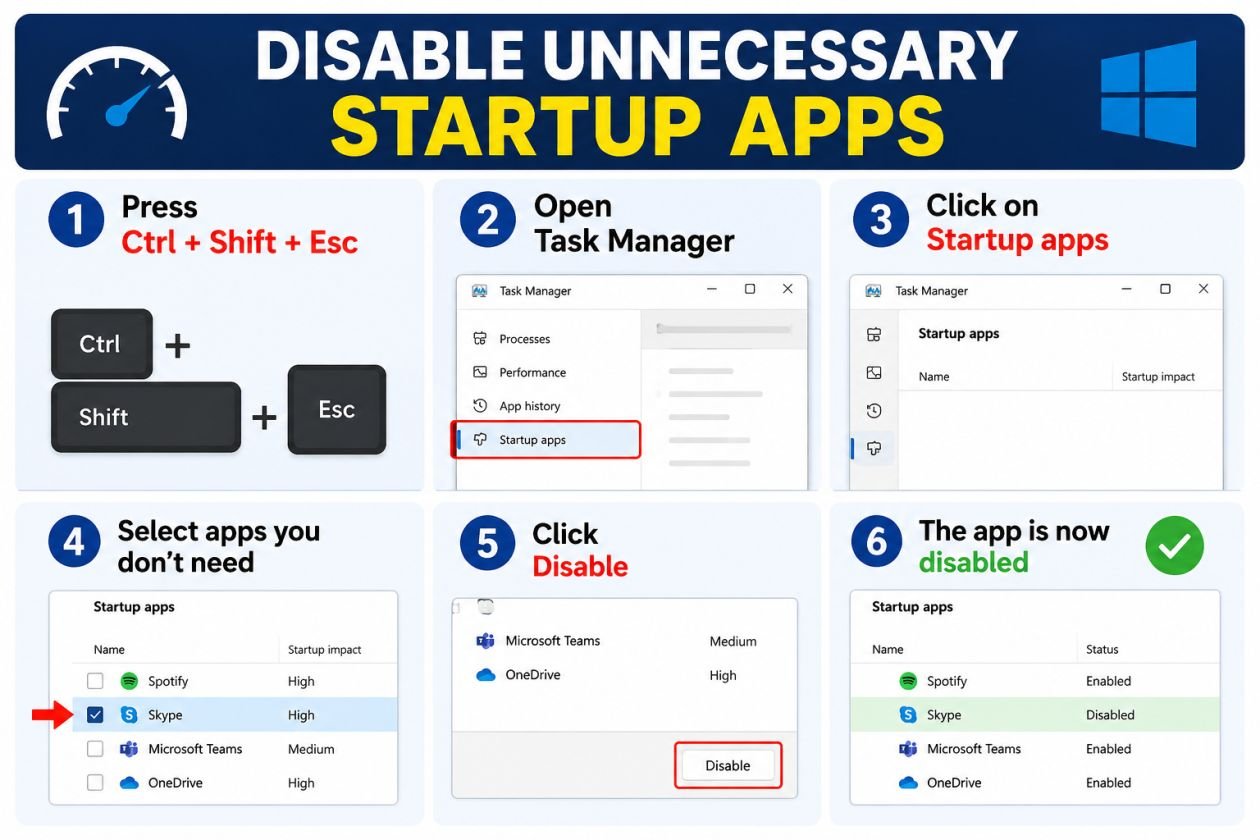
Many programs automatically launch with Windows, even when you don’t need them immediately. Disabling unnecessary ones can help reduce the workload during startup.
How to do it
- Press Ctrl + Shift + Esc to open Task Manager.
- Select Startup apps.
- Check the Startup impact column.
- Select apps you don’t need at startup.
- Click Disable.
Tip: Only disable applications you recognize. Don’t turn off Windows system components if you’re unsure what they do.
2. Free Up Storage Space
A storage drive filled with temporary files, downloads and unused applications can make your PC harder to maintain.
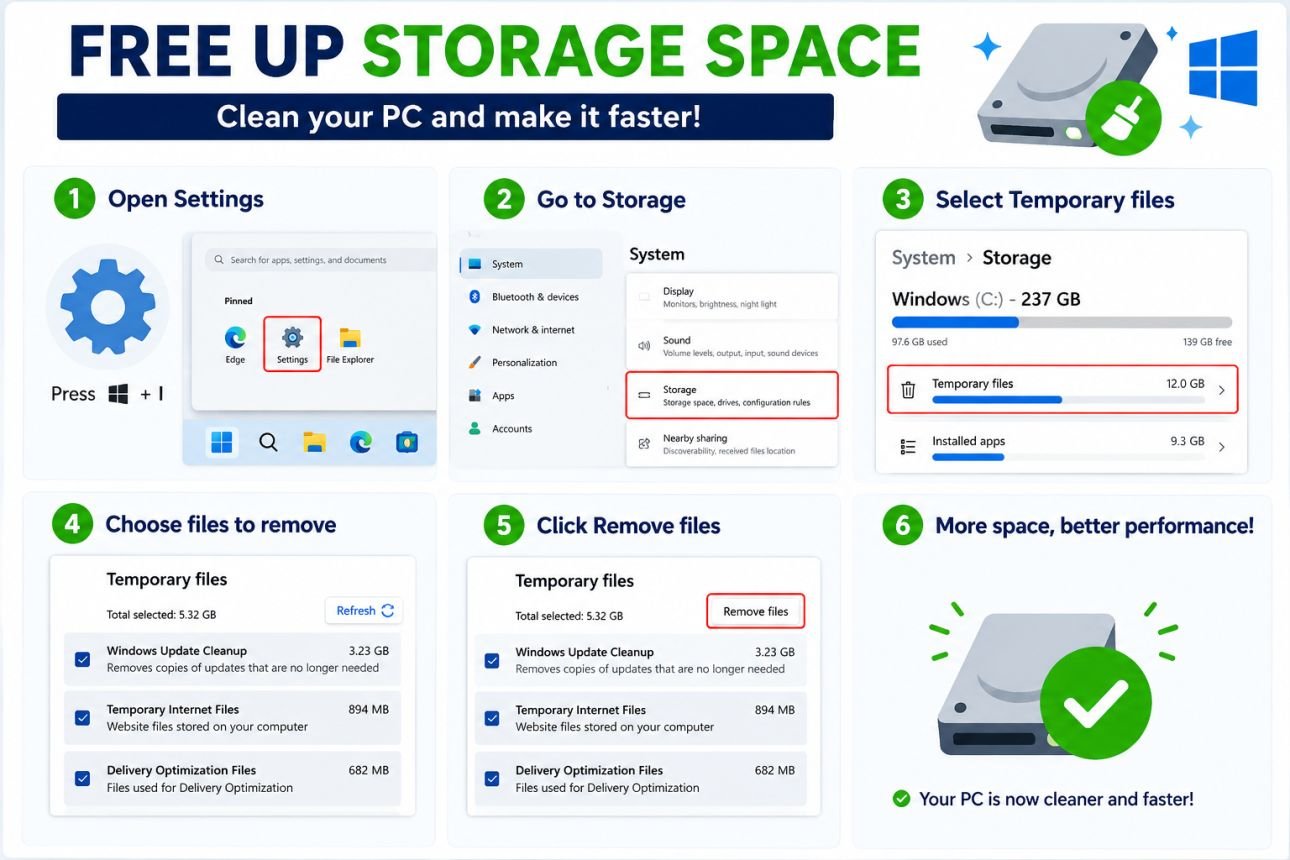
Windows 11 has a built-in cleanup feature that makes removing unnecessary files easy.
How to clean your PC
Go to:
Settings → System → Storage → Temporary files
Review the files carefully and remove items you no longer need.
You can also turn on Storage Sense to automatically manage certain unnecessary files.
Don’t forget unused apps
Go to:
Settings → Apps → Installed apps
Remove programs you no longer use.
Result: More available storage and less unnecessary clutter.
3. Find What’s Actually Slowing Your PC
Don’t guess what’s causing the slowdown—check Task Manager.
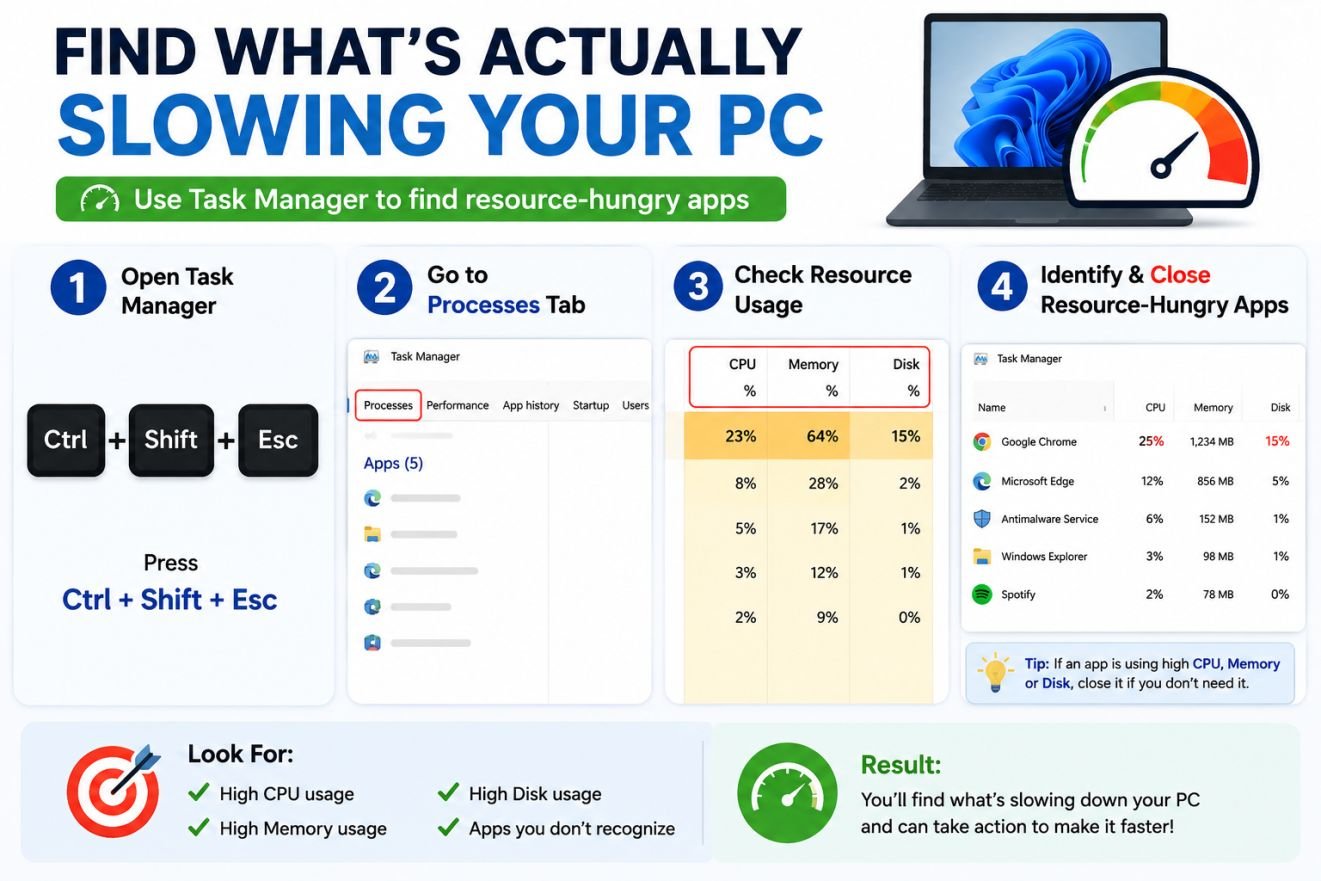
Press Ctrl + Shift + Esc and look at the CPU, Memory and Disk columns.
If one application is using an unusually high amount of resources, close it if appropriate and investigate the reason.
Check for:
- High CPU usage
- High RAM usage
- High disk usage
- Unnecessary applications running in the background
This can help you identify the real problem instead of randomly changing Windows settings.
Quick Comparison
| DIY Trick | Best For |
|---|---|
| Disable startup apps | Slow startup |
| Free up storage | Low disk space and clutter |
| Check Task Manager | Finding resource-heavy apps |
Final Thoughts
If Windows 11 is running slow, start with these three fixes before installing third-party optimization software.
Disable unnecessary startup apps, clean up your storage and use Task Manager to find resource-hungry programs. These are simple, safe starting points for improving everyday Windows performance.
If your PC remains slow after trying these steps, the problem could be related to hardware such as low RAM, an old HDD, an aging processor or overheating.