
Wednesday, 2 Sep 2026
  • My Feed
  • My Interests
  • My Saves
  • History
  • Blog
Subscribe
Nation Newz Nation Newz
  • Home
  • News
    • India
    • World
  • Technology

    Redmi Note 17 5G: Review, Specs and More

    By Ankit J

    Realme C100i Launched in India at ₹14,999: Price, Specs and Features

    By Ankit J

    10 AI Tools That Can Save You Hours Every Week

    By Ankit J

    Ather Konarc Unveiled: Multiple Battery Options and Up to 161 km Range

    By Ankit J

    Why Are Smartphones Getting So Expensive in India in 2026?

    By Ankit J

    Redmi Note 17 Pro Max 5G: Review, Price, Specs and Features

    By Ankit J
  • Finance
  • Lifestyle
    Reels Addiction Signs, Side Effects, and How to Stop Excessive Scrolling

    Reels Addiction: Signs, Side Effects, and How to Stop Excessive Scrolling

    By Ankit J
    Eat Eggs Every Day

    What Happens If You Eat Eggs Every Day? 7 Benefits for Your Body

    By Ankit J
    Care for Tulsi in Winter

    How to Care for Tulsi in Winter: Easy Tips for a Healthy Plant

    By Ankit J
    World Sanskrit Day

    World Sanskrit Day: Celebrating the Language, Literature and Legacy of Sanskrit

    By Ankit J
    Narali Purnima

    Narali Purnima 2026: Date, Significance, Rituals and Photoshoot Ideas

    By Ankit J
    World Humanitarian Day

    World Humanitarian Day: Honoring Humanity, Courage, and Compassion

    By Ankit J
  • DIY
  • 🔥
  • News
  • News
  • India
  • India News
  • Technology
  • World
  • Lifestyle
  • Smartphones
  • Technology
  • PM Modi
Font ResizerAa
Nation NewzNation Newz
  • My Saves
  • My Interests
  • My Feed
  • History
  • Finance
  • DIY
  • Lifestyle
  • Technology
Search
  • Pages
    • Home
    • Contact Us
    • News
    • Technology
  • Personalized
    • My Feed
    • My Saves
    • My Interests
    • History
  • Categories
    • Finance
    • DIY
    • Technology
    • Lifestyle
Have an existing account? Sign In
Follow US
© 2022 Foxiz News Network. Ruby Design Company. All Rights Reserved.
DIY

How to Make Windows 11 Faster: Top 3 Simple DIY Tricks

Ankit J
Last updated: August 29, 2026 5:32 pm
Ankit J
Share
Make Windows 11 Faster
SHARE

Is your Windows 11 PC running slow? Before you install a PC booster or think about buying a new computer, try these three simple fixes.
Contents
  • 1. Disable Unnecessary Startup Apps
  • 2. Free Up Storage Space
  • 3. Find What’s Actually Slowing Your PC
  • Quick Comparison
  • Final Thoughts
Make Windows 11 Faster

In many cases, unnecessary startup apps, low storage, and resource-heavy programs can make your computer feel sluggish. The good news is that Windows 11 already has built-in tools to help you deal with them.

Here are the top 3 ways to speed up Windows 11.

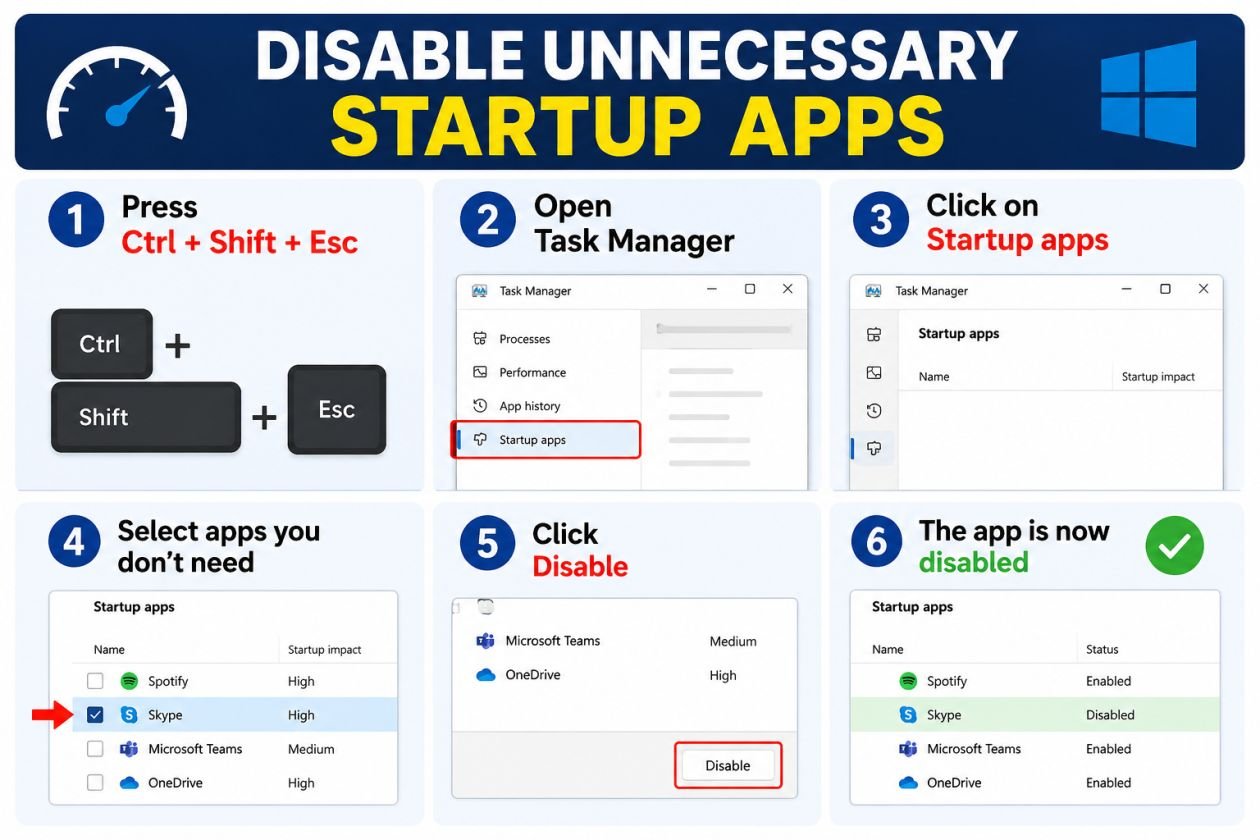
1. Disable Unnecessary Startup Apps

If your PC takes too long to become usable after turning it on, startup apps could be the reason.
Disable Unnecessary Startup Apps

Many programs automatically launch with Windows, even when you don’t need them immediately. Disabling unnecessary ones can help reduce the workload during startup.

How to do it

  1. Press Ctrl + Shift + Esc to open Task Manager.
  2. Select Startup apps.
  3. Check the Startup impact column.
  4. Select apps you don’t need at startup.
  5. Click Disable.

Tip: Only disable applications you recognize. Don’t turn off Windows system components if you’re unsure what they do.

2. Free Up Storage Space

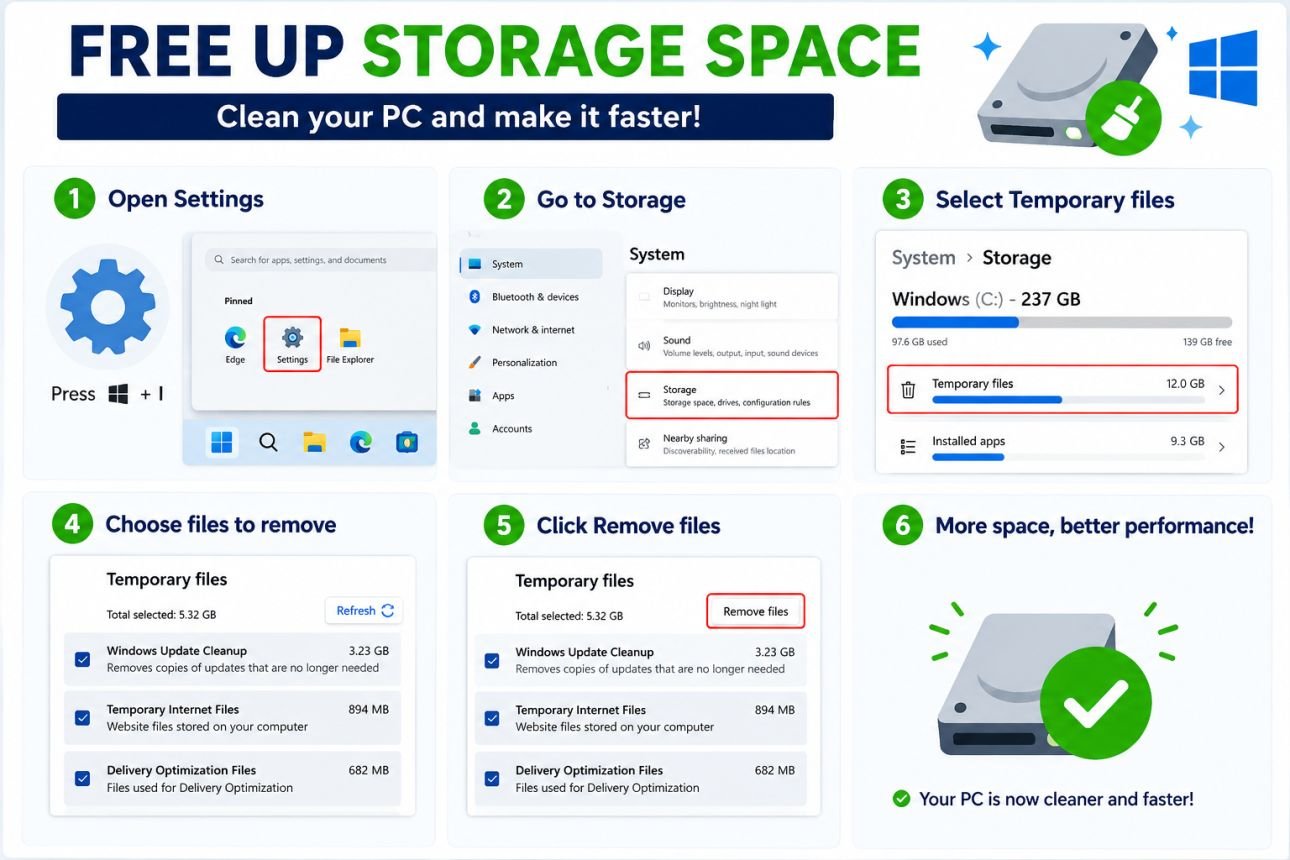
A storage drive filled with temporary files, downloads and unused applications can make your PC harder to maintain.
Free Up Storage Space

Windows 11 has a built-in cleanup feature that makes removing unnecessary files easy.

How to clean your PC

Go to:

Settings → System → Storage → Temporary files

Review the files carefully and remove items you no longer need.

You can also turn on Storage Sense to automatically manage certain unnecessary files.

Don’t forget unused apps

Go to:

Settings → Apps → Installed apps

Remove programs you no longer use.

Result: More available storage and less unnecessary clutter.

3. Find What’s Actually Slowing Your PC

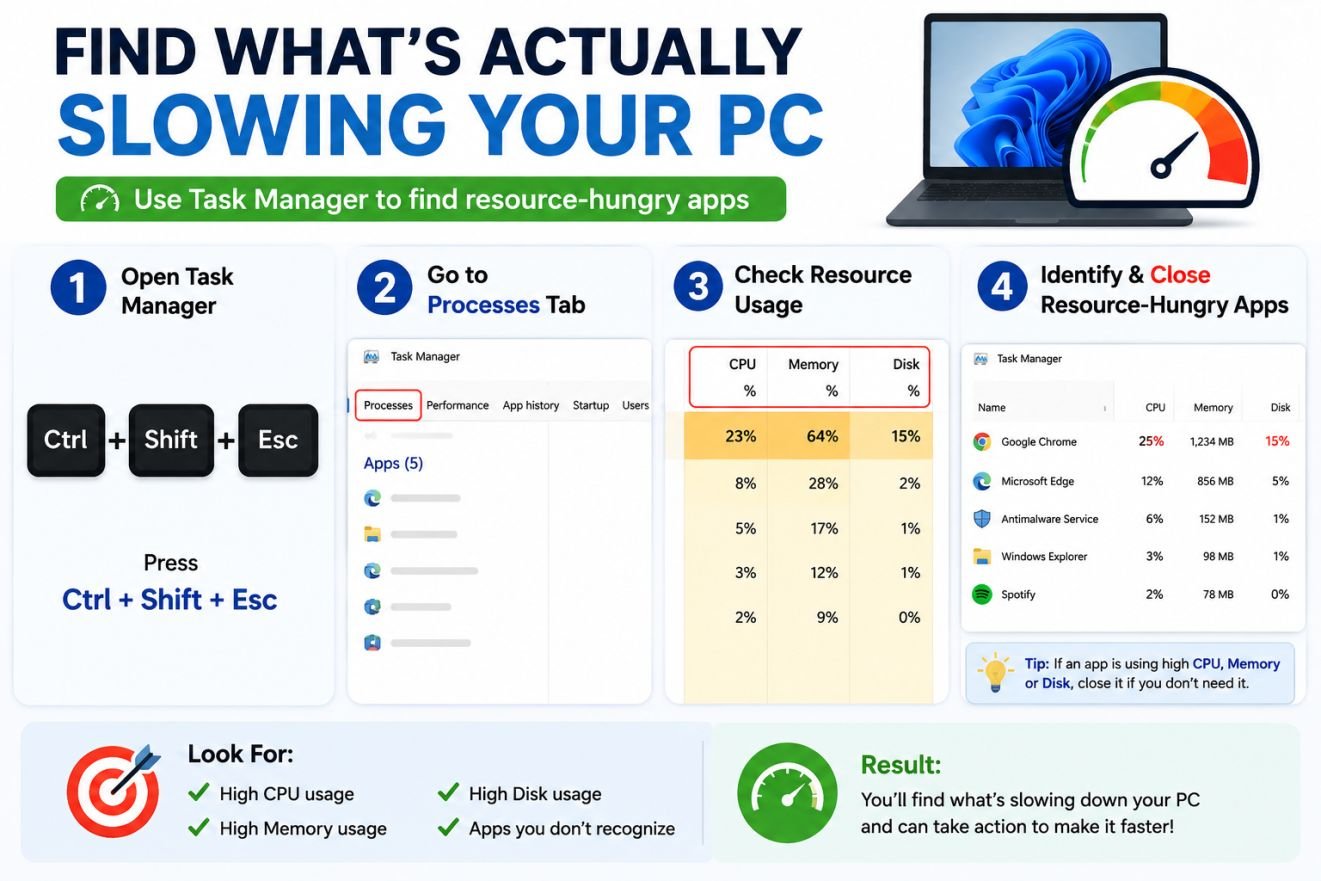
Don’t guess what’s causing the slowdown—check Task Manager.
Find What's Actually Slowing Your PC
Find What’s Actually Slowing Your PC

Press Ctrl + Shift + Esc and look at the CPU, Memory and Disk columns.

If one application is using an unusually high amount of resources, close it if appropriate and investigate the reason.

Check for:

  • High CPU usage
  • High RAM usage
  • High disk usage
  • Unnecessary applications running in the background

This can help you identify the real problem instead of randomly changing Windows settings.

Quick Comparison

DIY TrickBest For
Disable startup appsSlow startup
Free up storageLow disk space and clutter
Check Task ManagerFinding resource-heavy apps

Final Thoughts

If Windows 11 is running slow, start with these three fixes before installing third-party optimization software.

Disable unnecessary startup apps, clean up your storage and use Task Manager to find resource-hungry programs. These are simple, safe starting points for improving everyday Windows performance.

If your PC remains slow after trying these steps, the problem could be related to hardware such as low RAM, an old HDD, an aging processor or overheating.


TAGGED:Make Windows 11 FasterWindows 11Windows 11 Tips
Share This Article
Email Copy Link Print
Previous Article Nepal Flood Alert: China Warns of Possible Lake Burst and Another Flood Threat Nepal Flood Alert: China Warns of Possible Lake Burst and Another Flood Threat
Next Article Ather Konarc Ather Konarc Unveiled: Multiple Battery Options and Up to 161 km Range
Leave a Comment

Leave a Reply Cancel reply

Your email address will not be published. Required fields are marked *

Your Trusted Source for Accurate and Timely Updates!

Our commitment to accuracy, impartiality, and delivering breaking news as it happens has earned us the trust of a vast audience. Stay ahead with real-time updates on the latest events, trends.
FacebookLike
XFollow
InstagramFollow
- Advertisement -
Advertise HereAdvertise Here
Nation Newz Nation Newz
Facebook X-twitter Youtube Instagram

About US

Nation Newz: Nation Newz brings you the latest news, insights, and useful information across health, finance, technology, lifestyle, and more—all in one place.

Top Categories
  • Finance
  • DIY
  • Tech
  • Lifestyle
Usefull Links
  • Contact Us
  • Advertise with US
  • Privacy Policy
  • Cookie Policy

© Nation Newz. A News Company. All Rights Reserved.

Welcome Back!

Sign in to your account

Username or Email Address
Password

Lost your password?